Showing posts with label Angel. Show all posts

Friday, May 21, 2010

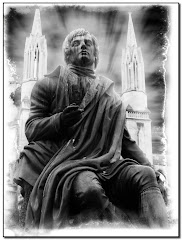
An Angel for Dave and His Better Half...


Our flickr friend Dave H. (who has some excellent images here: www.flickr.com/photos/22775126@N00/ ) gave us the gift of showing us around London on our last day here.

Dave knows our fascination with graveyards and went out of his way to take us to Highgate, a very old cemetery.

Later on his wife Jenny joined us for a lovely supper.

Thank you very much for your time, Dave. And thank you for introducing us to your vastly better half.

This image is for both of you with our warmest thanks...and the certainty that we will see you again.

Thursday, April 24, 2008

It's a Matter of Perspective...

We can't reasonably expect the people who view our pictures to put on those cardboard 3D glasses. While it would be very entertaining, it wouldn't do any good anyway.

But creating the sense of perspective is a fairly simple matter.

This jeep sits outside a WWII museum in New Orleans. Taking this picture with the end of the barrel in sharp focus and the rest of the gun progressively blurred was pretty simple.

I simply set my focus point to the right, locked in tight on the end of the barrel and adjusted the aperture properly and got the tip in sharp focus.

Sometimes, however, you can't take the picure with such a sharply defined focus. Here's where you can use Photoshop to your advantage.

What makes a subject "leap" off the image? It's accomplished by tricking the eye. It will focus on everything that is in focus, and immediately put everything else into a mental "background."

This angel guards a grave in a very small cemetary in Texas. She needed to be in the center of the graphic because I really wanted to create the idea that she was coming out of the picture.

The steps taken to finish this graphic are included in the upcoming "Perfect Portraits" course. But briefly, when taking the picture I wanted the background to be recognizable, I wanted to heighten contrast on the angel and I wanted to add a very strong perspective element to the photo.

The idea here is to use the "Quick Selection" tool in Photoshop CS3 to define the angel and her stand. I used the Selection options to build higher contrast on her, even as I "inverse" selected to blur and slightly desaturate the background. Then, with the background selected, I used Filter/Blur/Lens Blur to complete the effect.

This being done, the angel stands out on two fronts: she has a higher contrast and she is in sharp focus, as opposed to the background which features a lower contrast and has been uniformly blurred.

The "uniform" blur is important to the success of the picture, by the way. Remember that the camera would, in most cases, have a gradual blur. Since our intent is to create an angel in stark contrast to her background, the uniform strong blur makes her stand out even more strongly.

Think about using this perspective technology on another sort of picture. Think about how strong a product shot could become. Think about the specific focus on the bride even as you blur everything else. How about a child's eye? How about....???

Perspective is a great device to use on many graphics. It directs the viewer's eye to the specific aspect of the picture you have pre-chosen AND it makes them go "ooooooo."

And isn't that what it's all about?

Monday, March 31, 2008

They're Coming for You, Barbara

There's something about cemetaries, isn't there? For photographers they offer some obvious advantages: the subjects aren't going anywhere, there's lots of drama. Let's face it: it's interesting to see what relatives have done and had to say about their dear departed.
In the middle of Brownsville is one of those cemetaries. It's in one of the seedier parts of the city but we were lured there by the promise of really old graves.

There are old graves here. Some of them date back to the civil war.

I took the image above this afternoon and I was struck by the oddness of the little angel. It stands there year after year over top of a grave that really looks forgotten. Here's a thought about composition: when photographing statues you either have to go with little parts of the whole "picture" or, if it serves the graphic better, you can put the image into context. ('Context' is the fifty dollar way of saying "where the thing was.")

I knew the picture was here somewhere. I took a number of pictures of this little angel, (ALWAYS take a ton of pictures of something you KNOW you are going to use. It's digital. Relax. What doesn't work can be deleted) close ups as well as long views. Nothing was working when I got it back onto my Photoshop screen until I put the little angel into her own context. The image is much stronger for the background context.
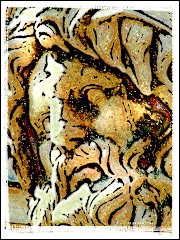
The statue to the above is a good example of how to use a close-up of a statue instead of the whole thing. There are three main components to the graphic: the woman, the cross and her hand gently drawing the cross close to her.
The actual statue is fairly heavily time worn so I needed to take some time to restore parts of her face and smooth out her hand a little.
The final touch was turning the picture into a black and white graphic and actually adding grain. Why make that decision? A couple of reasons: the grain masks some of the rougher areas of the statue. It also ages the graphic quite nicely. There are a couple of ways to easily add grain without going overboard.
The first is to make a copy of your graphic, add as much grain as you like (I use Exposure by Alien Skin, but you can easily add grain with some of the brushes already included with Photoshop) and then FADE the OPACITY so that the grain is more gently added.
The second method is to add grain and then play around with the Blending Modes. Try increasing the Contrast and then doing an Overlay Blend.
When taking pictures on a grey day -- like today in Brownsville -- you will find that your Dodge and Burn tools are your best friends. Give them about 50% power and move gently over your graphic to increase shadow and lighten areas where the graphic is too dark.
When photographing in cemetaries, just keep one eye peeled for shambling zombie types clawing their way out of the ground. Just in case...