Showing posts with label Photoshop Basics. Show all posts

Tuesday, August 12, 2008

Hello, Purist!

I have been playing around on Flickr...the photo display community, these past few days.

It seems to work like this: you post a picture. You go hunting for other pictures you like and tell the people who made them that you think they are wonderful. (If you'd like to tell me how wonderful I am, my "Photostream" is http://www.flickr.com/photos/41659872@N00/ but please remember that I am very sensitive and have been known to cry and sob for hours if someone hurts my feelings.) Then they come back, look at your stuff and tell you they think you're wonderful too.

It's okay, I suppose. But I have noticed that on a number of Flickr groups have "NO PHOTOSHOP" rules. These rules are written with the same passion you'd say "NO DEAD MAGGOTS OR ROTTING CORPSES."

There's actually a group called "Photoshop is not a dirty word." I was a little surprised at the vehemence some of these people have about not using Photoshop.

How come?

I think it goes back to a belief that, since Photoshop is digital editing software, the people who use it are second-rate photographers who take crappy pictures and try to make them better with Photoshop.

Hmmm.

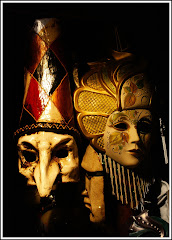
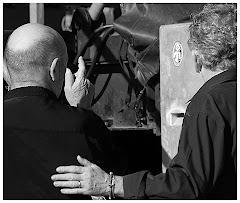
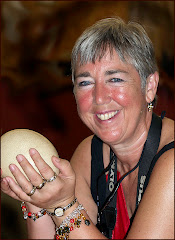
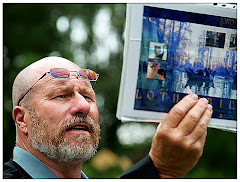
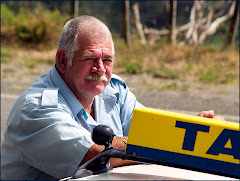
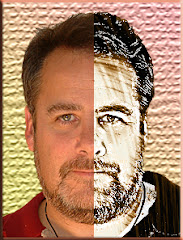
In the first place: a crappy picture will (at best) be only marginally less crappy after you've slaved over it in Photoshop. The round man brandishing the two pickles up top (who I met at a Renaissance Faire in New York) is making a comparison. That's the way I see the Photoshop/Photography debate. It's entirely two different pickles.

They are related art forms -- but they are not the same. I happen to be married to a die-hard purist. She'll crop a picture. She'll even make some minor adjustments. But the pic you see is the pic she shot. (Speaking of photography, you'd do yourself a massive favor by reading her blog on the "Basics of Photography." Bar none -- it's the clearest instruction on what plays into taking a good picture http://blog.picajet.com/2008/08/11/digital-camera-lessons-they-are-free-online-just-google-them/)

I, on the other hand, usually look at the picture I am taking as the starting point of a Photoshop project. Of course I want the pic to be as excellent as possible. The better the original, the better the starting point for my project.

There are purists everywhere. There are even Photoshop purists who think that whatever effect you create MUST be done in Photoshop without the aid of plug-ins or third party filters. The idea is that if you don't know how to get the job done in Photoshop, you shouldn't be doing it.

I, on the other hand, think that the artist's concept for a visual piece is what really matters and who cares how he gets there? It takes as long to learn plug ins as it does to learn Photoshop in some cases. If you can get the exact effect you're looking for with a plug in -- I'm all for it.

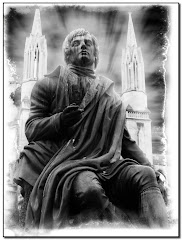
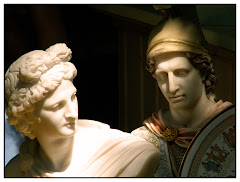
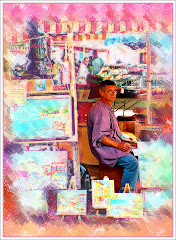
"Garden Girl" -- the green woman above, is a white statue somewhere in New Zealand. The white was uninteresting. She's got a green gradiant now -- but still retains the stone look. Added shadows enhance the look. So does the brick wall...and the fact that the green on her was taken from the green plants behind her. ("Garden Girl." Get it?) I like touches like that.


I agree with the purists. It's no longer a photograph. It's an image of a photograph remade to suit the image I had in mind when I took it. It's now digital artwork.

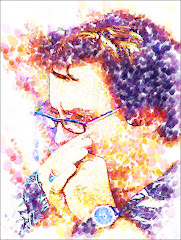
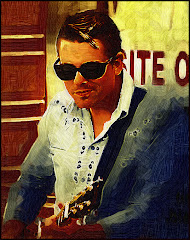
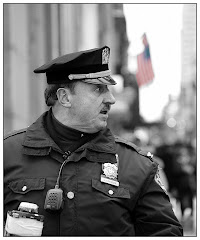
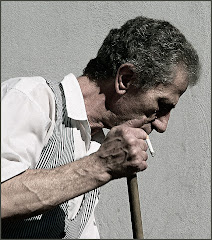
This actor (the one with the goggles) was promoting a movie about a race between New York and Paris. Aside from being a wonderful concept, the picture just didn't work in color. It needed grain and it needed a single tone. It needed to look gritty. I don't know how it could work as well as a color or even a black and white piece.

I agree it takes skill to make a great photograph. Absolutely. It also takes skill to turn out a great digital image.

What's the purpose of visual communication anyway? We are all looking to communicate an idea or a feeling or a concept. We're all trying to make the viewer of every photograph or image feel something.

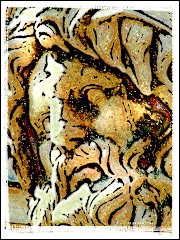
Here's a garbage can on Edmonton's Whyte Avenue. This is the "trendy area where there are also still a lot of street people."

I suspect one of them chose to put a different four letter word on top of a garbage can. I liked it. And while I was taken with the photograph, I was already thinking the image would be stronger if an element of "painterly" effect was added. The distortion is just enough to keep the image interesting.

So, hello Purists. It's nice to see you. I think you photographer types do some amazing work.

Now how about you all lighten up a little, okay? Take another look at the stuff graphic artists are doing and try to tell me there's not some wonderful art being generated. Or don't. Suit yourselves.

Wednesday, June 11, 2008

Adjustment Layers...and Why You Should Care

I think this is one of the top questions: "What's an adjustment layer?" There's a second unspoken question: "Why should I care???"

Adjustment Layer is third ONLY to "Curves", the whole notion of "Layers" and my most used command ("Undo") in the pantheon of "Cool Stuff in Photoshop."

What is it?

It's a layer that you can do all kinds of adjustments (from Brightness/Contrast to Curves to Hue and Saturation) to an instantly created COPY of your original. This means that if you screw it up, you aren't totally messed up because the work you did is on a copy. I think of the Adjustment Layer as an infinately adaptable magic layer on top of my graphic...but that's probably just me.
How is this different from the idea of copying a layer and working on the copy? you ask. Gee...that's a good question. Adjustment layers are wonderful because you can SELECT areas to apply your changes to without ever touching a selection tool.
You PAINT them onto the Adjustment mask.

Once you've added an Adjustment Layer you'll see a NEW box opening in Layers. This is a relatively terrifying thing the first time you look at it because it looks so darn strange.
I've outlined the actual Adjustment Layer in spiffy red so you can find it. You get a different Adjustment menu (this one is a Curves Adjustment) depending on which adjustment layer application you chose.
The way-seriously-cool-thing about Adjustment Layers is that you can now feel free to totally screw up your graphic. You can try wild application and strange combinations and it doesn't matter. If you don't like the way it looks you can delete the layer and start all over.
I know what you're thinking. "How do you make changes to the picture without making a selection." Yet another good question!
You will see that the Adjustment layer is represented as WHITE. Finish up your adjustments. (Let's say that you want to vastly lighten a portion of your picutre...but not all of it. With your Adjustment Layer you can lighten the WHOLE picture until it looks really hideous -- all except the areas that you wanted to lighten.)
Take your Paint Bucket Tool and choose a BLACK from the color picker. Pour the Paint Bucket over top of your Adjustment Layer. You will see all your recent changes disappear. Why? Because BLACK COVERS THE LAYER.

Take your brush and choose the White default color from the color picker. Now brush over ONLY the areas of your photo you want to change.
Leave some time so you can make the appropriate number of "ooooo" and "ahhhh" sounds as you watch ONLY the portions you wanted to change show up on your screen.

You can make very precise changes to your graphic. No muss. No fuss. No selections.
It is true that what I've told you about here is a serious over-simpification of how to use Adjustment Layers. But remember that people write books about this stuff. My advice? Play around with all the many Adjustment Layers available. You'll see your graphics doing the most interesting things.
And if you mess something up? Relax. It's Photoshop.

Tuesday, October 30, 2007

Why Photoshop? How about Photoshop Elements?

I get asked this a LOT: "Do I REALLY NEED Photoshop? Can I make do with Photoshop Elements?"


The people asking this question are usually regarding me with glassy eyes, since they have found out how much Photoshop costs. Yup. It's expensive.


The kneejerk response is to add "But it's worth it!" This is the part where digi-geeks go on (and on) about how it's the World Standard for Digital Editing. You add that it's used by many of the top advertising and graphic houses around the world.

Uh huh.

But the question remains: "Is Photoshop WORTH $700?"


The real answer: "It depends. Is it worth it to YOU?"


Aha. Caught you off guard, huh?


Photoshop is worth the money if you want to be able to do ANYTHING with your image...and if you are willing to put in the many hours it will take for you to really learn how to use it.


It's true that you can learn the basics very quickly (hence the course we sell called "Learn the Basics of Photoshop in SIX HOURS: from our website at http://www.photoshopbasics.com/ ).


But let's face facts: not everyone is going to want to invest the time and the money in using Photoshop. It's kind of like buying a Corvette so you can drive to the grocery store every other Sunday.


Photoshop Elements has a lot going for it. In the first place: it's MUCH more user friendly. The folks at Adobe have tried to anticipate what kind of projects you are going to be working on...and they've worked hard to make it easier for you to use.

Layers work. And you get many of the Way Cool tools available in Photoshop.


You can use ALL the third party filter sets in Elements. There are a lot of Photoshop users -- me included -- who use filters a LOT. (Filters, also known as "Plug ins" are third party software packages designed to work from within Photoshop to help you do seriously cool stuff very quickly.)


Many people have cut their digital editing teeth on Elements and moved up to Photoshop when they had the basics down. There's a lot of power under that Elements hood.


It's true that some of the very cool Bells and Whistles from Photoshop are missing from Elements. But let's face it: you won't miss what you never knew. AND if you DO move up to Photoshop, the learning curve will be significantly easier. (IE You won't be throwing up when you look at the screen for the first time.)

Best of all -- all our courses work with Photoshop or Photoshop Elements.


And there's the difference in COST -- with Elements coming in at less than a third the cost of Photoshop.


But having said all that, I have to admit that I would never use Elements if Photoshop were available. But I'm a digi-geek, lacking social options that would drag me away from my computer. I love bells and whistles. I like all my adjustment layers and ALL the available tools in my trusty little cyber toolbox.

Short answer? Photoshop is worth it if you are gonna use it. Much better to give it all a try on Photoshop Elements and see if you get digi-fever. (You'll know because you'll be up all night, develop a craving for high sugar sodas and Doritos.) THEN make the investment.

If you can't wait a single second longer -- keep in mind that you can download fully functioning 30 day TRIAL versions of Photoshop as well as Photoshop Elements from Adobe at http://www.adobe.com/